A watermark is the simplest signal a photo can carry: this is mine, or at least, this came from me. Photographers stamp portfolios, shops stamp product shots so competitors cannot lift them cleanly, and landlords stamp listing photos before they scatter across the internet. Done well, a watermark is visible enough to discourage casual reuse and subtle enough not to ruin the image.
This guide shows how to add one with the free Watermark Adder on Ovatly, which draws the mark in your browser and never uploads your photo. It covers the choices that decide whether a watermark looks professional (text, position, opacity, size, colour) and then gives the honest section most guides skip: what a watermark can and cannot protect, so you rely on it for the right job.
Contents
- Quick answer
- The two kinds of watermark
- The settings that decide how it looks
- How to add a watermark, step by step
- Worked example: marking a sample photo
- What a watermark can and cannot do
- Limitations and alternatives
- Common mistakes
- Troubleshooting
- FAQs
- Conclusion
- References
Quick answer
Open the Watermark Adder, add your photo, and type your watermark text (a name, a business name or a copyright line). Choose a position, bottom right is the unobtrusive standard, or tiled across the image for maximum coverage. Set opacity near 50 percent so the mark is readable but does not fight the photo, pick a text size of a few percent of the image width, and watch the live preview. Then download the watermarked PNG. Remember the honest limit: a watermark discourages casual copying and brands your images; it does not make copying impossible and it is not what creates your legal rights.
The two kinds of watermark
Text watermarks are words set over the image: a name, a brand, a website, or a copyright line such as "© Sample Photos". They are quick to make, easy to read, and the type the Ovatly tool produces. Logo watermarks place a graphic mark instead, usually a pre-designed logo with transparency. They look more polished for established brands but need a prepared logo file.
Placement style matters as much as type. A single corner mark is a signature: light protection, minimal interference. A tiled watermark repeats the text across the whole frame, which is much harder to crop away and is the choice for proofs and samples you send before payment. A centred mark sits between the two. The Ovatly tool offers the corner and centre positions plus the tiled option, so the choice is a setting, not a rebuild.
The settings that decide how it looks
Position. Bottom right is conventional because eyes land there last and it rarely covers the subject. Avoid placing the mark over faces or the product itself unless you deliberately choose the tiled style.
Opacity. This is the visibility dial. At 100 percent the text is solid and shouts; at 20 percent it can disappear against a busy background. Around 40 to 60 percent is the working range for a corner mark: clearly readable when someone looks, quiet when they do not.
Size. The tool expresses text size as a percentage of the image width (4 percent in our example), which keeps the mark proportional when you process different image sizes.
Colour and contrast. White text with a slight shadow reads well on most photos; on very light images it vanishes, which is why you judge on the preview of your actual photo, not on habit.
Readability of the words themselves. A watermark is read in a glance. Your name or brand, plus a year or a short copyright symbol, is enough. Sentences become clutter.
How to add a watermark, step by step
- Open the Watermark Adder. The tool loads empty, waiting for an image.
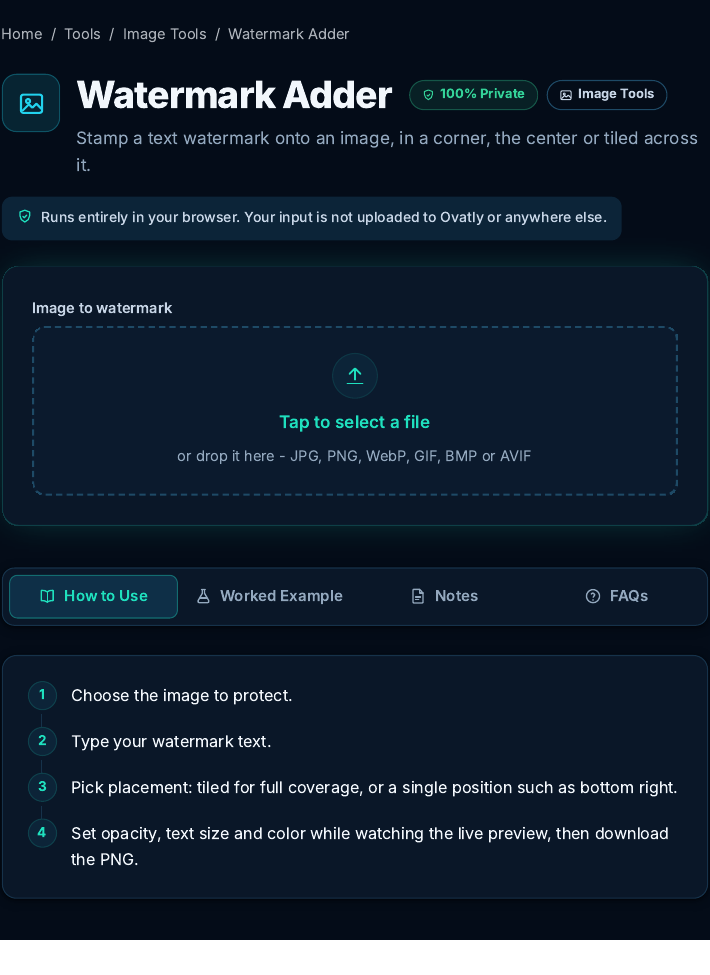 The tool before an image is added. Screenshot: genuine capture from the live Ovatly staging website, 9 November 2026.
- Add the photo you want to mark. Type your watermark text into the text field.
- Choose the position (bottom right for a signature mark, tiled for proof copies), then set opacity and text size while watching the live preview update. In the capture below the text is "© Sample Photos", position bottom right, opacity 50 percent, text size 4 percent of width, colour white.
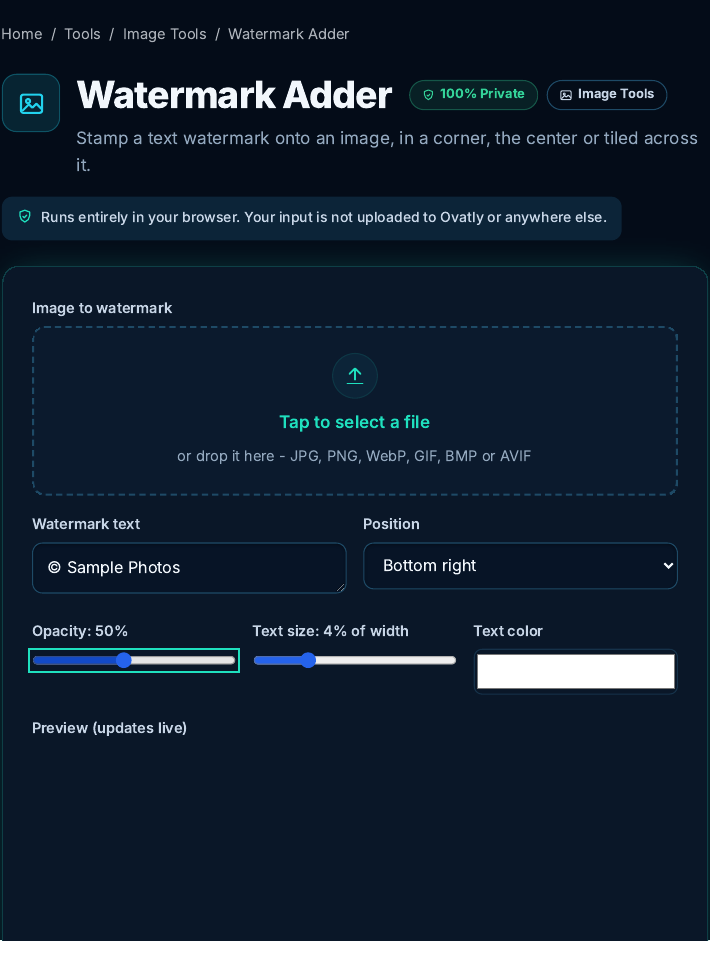 The settings used in the worked example. Screenshot: genuine capture from the live Ovatly staging website, 9 November 2026.
- Check the preview: the mark should be legible, clear of the subject, and calm. Then click the download button to save the watermarked PNG.
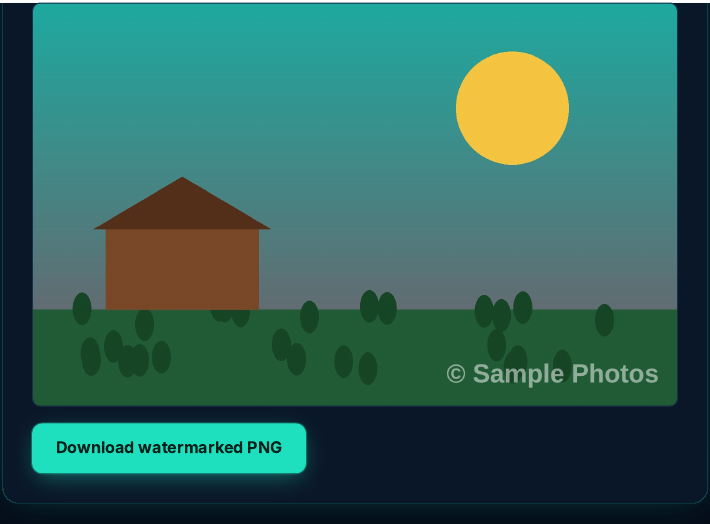 The live preview with the finished mark. Screenshot: genuine capture from the live Ovatly staging website, 9 November 2026.
Worked example: marking a sample photo
For this guide we marked a real test image on the staging website: a landscape illustration saved as a JPEG, 1600 by 1000 pixels, 64,757 bytes on disk. With the settings above, the preview showed the "© Sample Photos" line sitting cleanly over the dark foreground at the bottom right, readable at a glance and easy to ignore while viewing the scene.
The export teaches the one technical fact worth knowing about this tool: it downloads a PNG at the image's full original dimensions (we verified the downloaded file: 1600 by 1000 pixels, exactly the input size). Because PNG is a lossless format, that file weighed 228,697 bytes, larger than the JPEG it came from. That is normal and not a defect: PNG trades size for exactness. If the watermarked image is headed for a web page where weight matters, run it through the Image Compressor afterwards, or keep the PNG as your distribution master and compress copies. And as always, keep your unwatermarked original untouched; watermarking is a one-way edit on the copy you export.
 The tool's actual exported file, downscaled only for display in this draft. The original export is 1600 by 1000 PNG.
What a watermark can and cannot do
A watermark is good at three things. It brands images wherever they travel, so reposts still advertise the source. It raises the effort of reuse: a casual copier must crop or edit, and many will not bother. And on proofs and samples, a tiled mark makes the unpaid version visibly unfinished, which is often its most commercial use.
It is equally important to say what it cannot do. A determined person can crop a corner mark, cover it, or use editing tools to reduce it, so a watermark is a deterrent, not a lock. It also is not the source of your legal rights: in most countries, copyright in a photo belongs to its creator from the moment of creation, whether or not a watermark is present. Under the Berne Convention framework administered by the World Intellectual Property Organization (WIPO), copyright protection generally arises automatically, without registration or marking, and photographs are among the protected works. Who owns a work initially, however (for example, work made as an employee or under commission), and the exceptions to protection, depend on the jurisdiction, as do the enforcement routes, so read this as the general position rather than a ruling for your country. Removing watermarks in order to infringe can itself attract penalties in some jurisdictions. The mark helps prove and signal ownership; it does not create it. If you face real infringement of valuable work, the remedy is the platform's takedown process or legal advice, not a bigger watermark. This section is general information, not legal advice.
Limitations and alternatives
The Ovatly tool adds text watermarks to one image at a time and exports PNG. It does not place logo-image watermarks, and it does not batch-process folders; for a large catalogue, a desktop editor with batch actions is the practical tool, at the cost of uploading or installing software. Because the export is PNG, file sizes grow compared with JPEG inputs, as the worked example showed; compress afterwards if needed. The work happens in your browser, and the implementation was checked for this guide: the drawing is done on a canvas locally and the photo is not uploaded.
Common mistakes
- Marking the only copy. Watermark a duplicate. The clean original is your master.
- Too subtle to read. If the mark disappears on a light background, it fails its one job. Check the preview over the brightest part of the image too.
- Too loud to ignore. A solid, huge mark across the subject makes the image unusable for its actual purpose, which is usually to be looked at.
- Corner mark on a proof. Corners crop off in seconds. Proofs that precede payment deserve the tiled style.
- Believing the mark is the protection. It is a signal and a deterrent. Keep originals, keep records, and use takedown routes when it matters.
Troubleshooting
The watermark is invisible in the preview. Raise the opacity, enlarge the text size, or switch colour. Busy or bright areas swallow faint marks; the tiled style also guarantees some instances land on calm areas.
The export is much larger than my original. That is the PNG export described above. Compress the exported file with the Image Compressor if it is going to a web page, and keep the PNG where quality matters.
The text looks rough at large sizes. Increase the text size percentage; the text is drawn at export resolution, so what the preview shows at full size is what you get.
FAQs
Does the tool upload my photo? No. The watermark is drawn in your browser on a canvas; we checked the implementation for this guide and the photo is not sent anywhere. The tool page states the same.
What should my watermark say? Your name or brand, optionally with the copyright symbol and year. Short enough to read in a glance.
Will a watermark stop people stealing my photos? It stops casual reuse and makes deliberate theft require effort; a visible mark can also make unauthorized reuse easier to detect and to document. It does not make theft impossible. See the honest section above.
Why is the download a PNG when my photo was a JPEG? The tool exports PNG at full original dimensions. PNG is lossless, so the mark stays crisp, at the cost of a larger file.
Can I watermark many photos at once? Not in this tool; it works one image at a time. For bulk work, use a desktop editor's batch feature.
Conclusion
A good watermark is a quiet signature: the right words, in a corner or tiled by intent, at an opacity your preview proves readable, exported onto a copy while your original stays clean. The Watermark Adder covers that job privately in your browser, and the neighbouring Image Tools handle the resize and compress steps around it. Use the mark for what it is genuinely worth, branding and deterrence, and it will serve you well.
References
- World Intellectual Property Organization (WIPO), Copyright (automatic protection under the Berne framework; photographs as protected works): https://www.wipo.int/web/copyright
- United States Copyright Office, Copyright Basics (ownership arises on creation; registration and notice explained): https://www.copyright.gov/what-is-copyright/
- MDN Web Docs, on the Canvas API used to draw on images in the browser: https://developer.mozilla.org/en-US/docs/Web/API/Canvas_API